Caseware SmartSync Setup for Terminal Server / RDS
Use this when Caseware Working Papers is installed on a Terminal Server (Remote Desktop Server) and users are experiencing file lockups or are able to browse each other’s SmartSync folders.
What this fixes
- Prevents multiple users from sharing the same SmartSync local path on the server.
- Reduces file lock conflicts caused by shared or stale local copies.
- Ensures each user syncs to their own local SmartSync folder (recommended on Terminal Server).
Quick checklist
- Open File > Options in Caseware Working Papers.
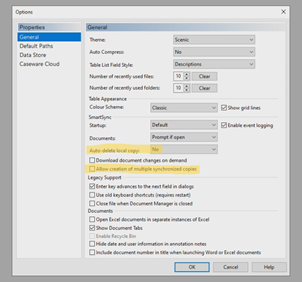
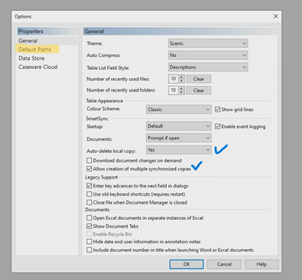
- Options > General: set Auto-delete local copy to Yes and enable Allow creation of multiple synchronized copies.
- Options > Default Paths: change SmartSync Path to a per-user location (do not use a shared path).
- If using Caseware Cloud: Options > Caseware Cloud: verify Integrate with Caseware Cloud and the correct server is active.
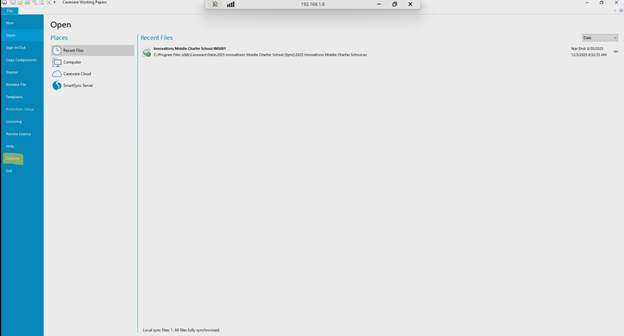
Figure 1. In Caseware Working Papers, go to File and select Options (highlighted).
1. Enable SmartSync options (Terminal Server)
In Options > General, update the settings below. These are recommended on Terminal Server so each user can maintain their own synchronized copy and reduce conflicts.
Set the following:
- Auto-delete local copy: Yes
- Allow creation of multiple synchronized copies: Enabled (checked)
Before | After |
|
|
Figure 2. Settings to change (highlighted). | Figure 3. Updated settings (Auto-delete = Yes and multiple synchronized copies enabled). |
Save: Click OK. If changes do not apply immediately, close and re-open Caseware Working Papers.
2. Change SmartSync Path to a per-user folder
On Terminal Server, do not leave SmartSync pointed to a shared program folder (for example, under C:\Program Files (x86)). Each user must have their own SmartSync path so they are not syncing into the same local folder.
Steps
1. Go to Options > Default Paths.
2. Locate SmartSync Path.
3. Change it to a user-specific location (examples below).
Examples of good SmartSync Paths (choose one that matches the environment):
- C:\Users\%USERNAME%\Documents\Caseware\SmartSync
- C:\Users\%USERNAME%\AppData\Local\Caseware\SmartSync
- H:\Caseware\SmartSync (user home drive, if mapped per user)
Tip: Create the folder first and confirm the user has full read/write access. Avoid using the same path for all users.
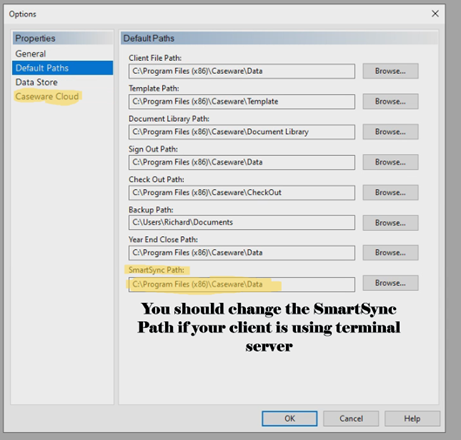
Figure 4. Update SmartSync Path so each Terminal Server user uses a unique folder.
3. Caseware Cloud integration (if applicable)
If the client uses Caseware Cloud, confirm Cloud integration so SmartSync can pull the engagement files from the Cloud service instead of a local/shared server folder.
Steps
1. Go to Options > Caseware Cloud.
2. Check Integrate with Caseware Cloud.
3. Verify the correct Cloud server is listed and set to Active.
4. Click OK and sign in when prompted.
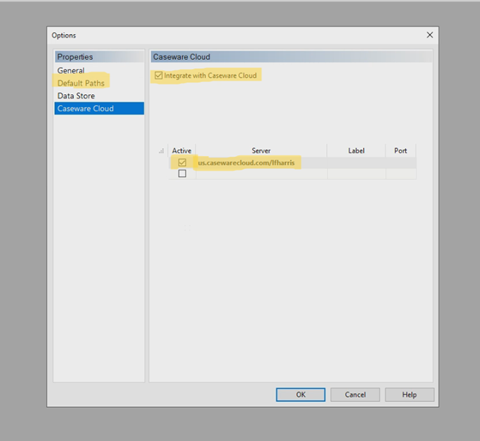
Figure 5. Caseware Cloud settings - enable integration and verify the active server.
Verification
- Log in to Caseware and confirm SmartSync completes without errors.
- Confirm each Terminal Server user has a unique SmartSync folder (from Step 2).
- Open the same engagement from two different user sessions - it should not immediately lock due to shared local paths.
Was this article helpful?
That’s Great!
Thank you for your feedback
Sorry! We couldn't be helpful
Thank you for your feedback
Feedback sent
We appreciate your effort and will try to fix the article