Nitro Pro 10 - Stamp Tool Freezes
(Windows 10)
Internal troubleshooting guide for Lan IT technicians
KB ID | KB-NITRO-010 |
Version | 1.1 |
Last updated | 2025-12-29 |
Applies to | Nitro Pro 10 on Windows 10/11 |
Issue | Nitro hangs when selecting Review > Stamp |
Issue overview
Applies to | Nitro Pro 10 on Windows 10/11 |
Symptom | Nitro becomes unresponsive (Not Responding) when selecting Review > Stamp or opening Manage Stamps. |
Goal | Restore Stamp functionality without reinstalling, when possible. |
Stop point | After any step that resolves the issue. |
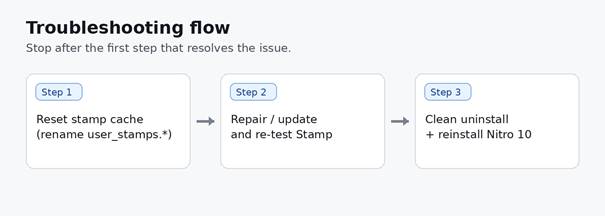
Troubleshooting flow
Stop after the first step that resolves the issue.
Before you begin
- Save any open PDFs in Nitro and close Nitro Pro completely (end the task in Task Manager if needed).
- If the user has custom stamps they care about, back up the stamp files before doing any uninstall steps.
- Confirm the issue is reproducible by opening a local PDF and attempting Review > Stamp.
Background (why this happens)
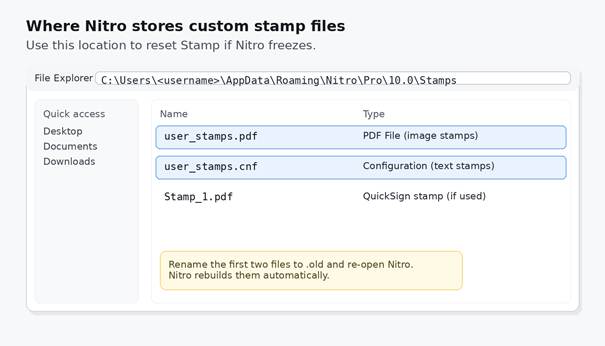
Nitro stores custom stamps in the user profile (under %AppData% ...\Nitro\Pro\Stamps). Image-based stamps are stored in user_stamps.pdf, while text-only stamps are stored in user_stamps.cnf. If these files become corrupted, opening the Stamp menu or Manage Stamps may hang.
Step 1 - Reset the Stamp cache (user stamp files)
This step rebuilds the two files Nitro uses for custom stamps. It is non-destructive if you back up the files first.
Procedure
1) Close Nitro Pro completely.
2) Open the Stamps folder:
- Run dialog: %appdata%\Nitro\Pro\10.0\Stamps
- Alternate folder: %appdata%\Nitro\Pro\10\Stamps
- Search: Search within %appdata%\Nitro for user_stamps.pdf
3) Back up:
- user_stamps.pdf
- user_stamps.cnf
4) Rename (do not delete):
- user_stamps.pdf -> user_stamps.pdf.old
- user_stamps.cnf -> user_stamps.cnf.old
5) Re-open Nitro and test Review > Stamp.
Verification
- Stamp menu opens immediately and does not freeze.
- A standard stamp (for example, Paid/Reviewed) can be placed on a PDF.
Rollback / recovery
If custom stamps are missing after the reset, close Nitro and restore the backed up files by removing the .old extension.
Step 2 - Repair / reinstall Nitro Pro 10 (standard)
Use this step if Step 1 did not resolve the freeze.
Procedure
- Open Control Panel > Programs and Features (or Settings > Apps).
- Select Nitro Pro 10 > Change (if available) and run Repair.
- Reboot Windows and re-test Review > Stamp.
If Repair is not available
- Uninstall Nitro Pro 10, reboot, then install again (use your internal software repository or the installer you have on hand).
- Activate: Help > About Nitro Pro > Activation and enter the serial number.
Step 3 - Clean uninstall + reinstall (Nitro Clean Up utility)
This step removes Nitro more thoroughly than a standard uninstall and clears old installer artifacts.
Important: The Nitro Clean Up utility can remove signature and stamp-related files. Back up custom stamps and any stored signatures before running it. |
Procedure
- Clear C:\Users\<username>\AppData\Local\Temp (delete contents Windows allows).
- Download cleanup.zip, extract to Desktop, run it, then reboot.
- Delete old Nitro installers from the Downloads folder (prevents older MSI/EXE packages from being reused).
- Install Nitro Pro 10 (10.x.x.x) using an offline installer from your internal software repository, then activate using Help > About Nitro Pro > Activation.
Download links
Nitro Clean Up utility (community link): http://install.nitropdf.com/support/downloads/cleanup.zip
Offline installer: Use the Lan IT software repository or Nitro-provided installer media for Nitro Pro 10 (10.x.x.x).
Additional checks (if needed)
Use these checks to rule out file-specific or environment-specific causes.
- Test Stamp on a different PDF saved locally (for example, Desktop) to rule out a file or network location issue.
- Run Nitro once as Administrator (right-click Nitro Pro > Run as administrator).
- Temporarily disable third-party PDF add-ons or security software that hooks into PDF processes, then re-test.
- Check Windows Event Viewer for application errors related to Nitro at the time of the freeze.
Escalation package (what to capture)
- Nitro Pro version (10.x): Help > About Nitro Pro (screenshot).
- Windows version/build: winver screenshot or text.
- Exact reproduction steps and whether the freeze happens on all PDFs or only specific files.
- Whether Step 1 recreated new user_stamps files after relaunch.
References
- Nitro user guide (Windows) - Add a Stamp: https://www.gonitro.com/user-guide/pro/article/add-a-stamp
- Nitro quicklinks - Creating & Using Stamps (screenshots): https://cs.gonitro.com/quicklinks/stamps/
- Nitro Community - Stamp storage and user_stamps files: https://community.gonitro.com/topic/3269-dynamic-custom-stamp-options-firm-name-and-date-only/
- Nitro Community - Pro 10 clean uninstall + activation guidance: https://community.gonitro.com/topic/4627-reinstall-of-nitro-10-isnt-working/
Was this article helpful?
That’s Great!
Thank you for your feedback
Sorry! We couldn't be helpful
Thank you for your feedback
Feedback sent
We appreciate your effort and will try to fix the article